![pinch-icon-red-100x100.png]](https://helpdesk.getpinch.com.au/hs-fs/hubfs/Images/icons/pinch-icon-red-100x100.png?height=40&name=pinch-icon-red-100x100.png)
Setting Up Statementing Emails
In order to send different emails to your merchants from Glassbox, you will need a technical
person / your IT team to set up a SendGrid account. This will hook into your email server so that
emails come directly from the payfac, just generated by Pinch
https://sendgrid.com/en-us
Once you have established an account, the configuration is relatively simple.
SendGrid API Key
First you will need to create a SendGrid API key in your SendGrid account.
Once you have an API key, ensure that you have enabled Full Access for the Template Engine. You can manage access settings in the 'Edit API Key' view.
Provide Pinch certain SendGrid details
You will need to provide Pinch with
-
your SendGrid API key which will be added to your Payfac data profile.
- From email: which email you will be using to send the emails from and for customers to reply to
- From Name: which name you would like to be displayed alongside the email.
Once Pinch has these details and has set up your Payfac profile will you be able to enable and select email templates on the 'Email Settings' page.
SendGrid - Create a Dynamic Template
Log into sendgrid
Head to the Email API tab
Select Dynamic Templates
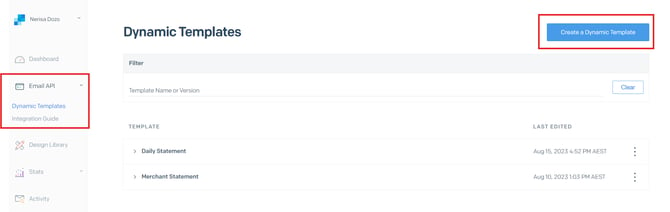
SendGrid support documentation for setting up emails
Email Settings
On the 'Email Settings' page you will find a list of email types and each one has a switch and dropdown menu. You can choose to enable/disable the sending of the email type and also select a template from the dropdown menu. The dropdown options will show the current templates you have in your SendGrid account if you have set up the API key permissions properly.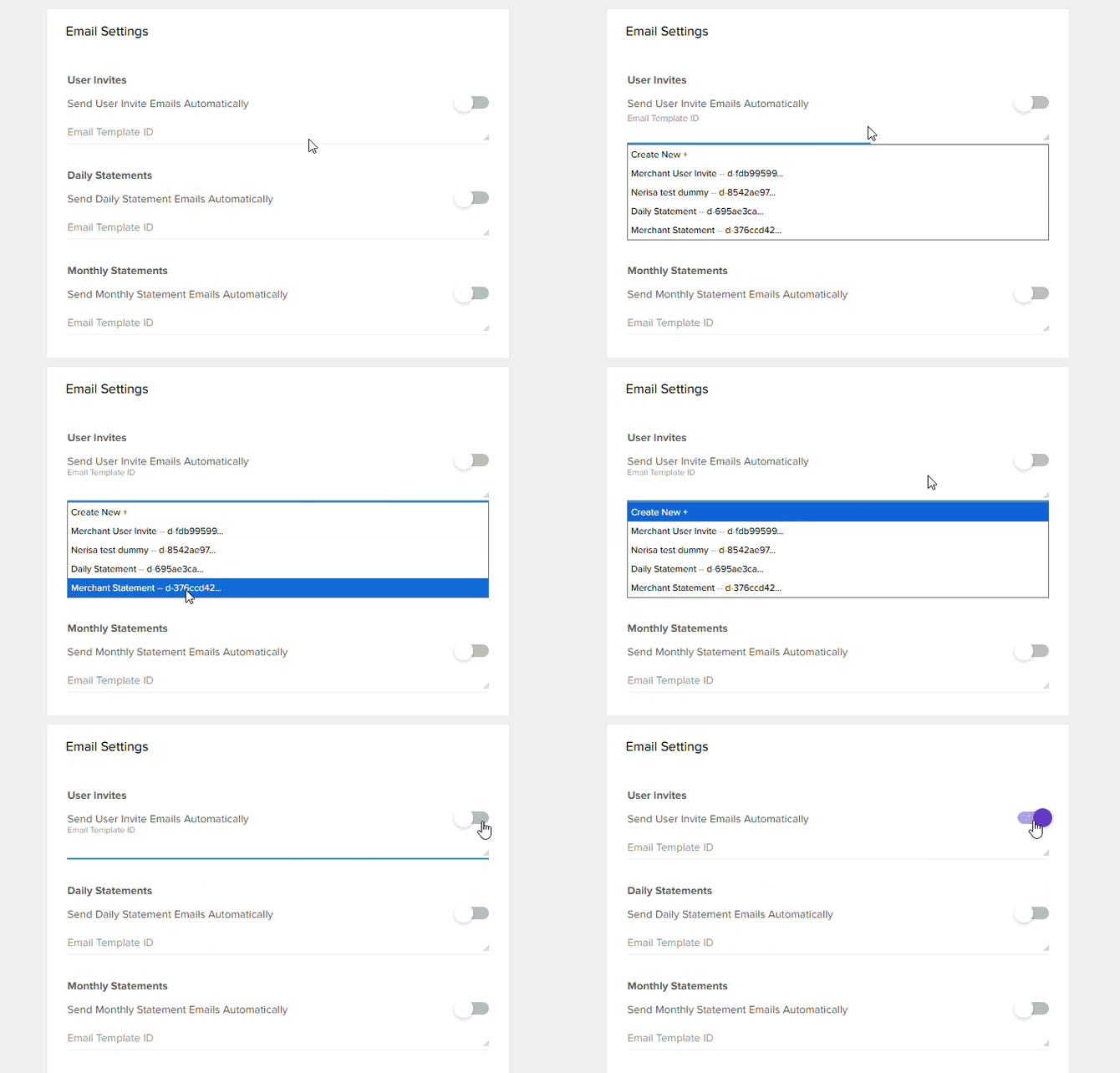
You can select an existing template or you can choose to 'Create New +' which will create a generic Pinch template for that email type and add it to your SendGrid account, Ready to Go!
Template Variables
If you choose to 'Create New +' and use the auto generated template then you do not need to worry about template variables since the generated template will incorporate all the required variables.
If you decide to create your own template then you will need to accommodate the following variables.
These variables can be used in both the Subject and the Body of the email.
Example subject usage: Your Merchant Statement for
Example body usage: Hi ,
Create the email templates however you like and once happy with that, select save and head back
to the main screen which has all your templates.
Select the Daily Template and find the Template ID
Template: User Invites
- InviteeName
- MerchantName
- ActivationLink
Template: Daily Statements
- ContactName - Primary contact of the business\
- CompanyName - Company name
- BillingPeriod - The date range of the statement
- MerchantInvoiceId - the unique Id of the invoice
Template: Monthly Statements
- ContactName - Primary contact of the business
- CompanyName - Company name
- BillingPeriod - The date range of the statement
- MerchantInvoiceId - the unique Id of the invoice
Template: Reset Password
- ContactName - Primary contact of the business
- CompanyName - Company name
Webhooks
Open Sendgrid and navigate to Settings -> Mail settings -> Event Webhooks
Open the Pinch PayFac settings and toggle on the Webhooks Settings. Copy the Webhook Post
Uri - you will need this when creating the webhook.
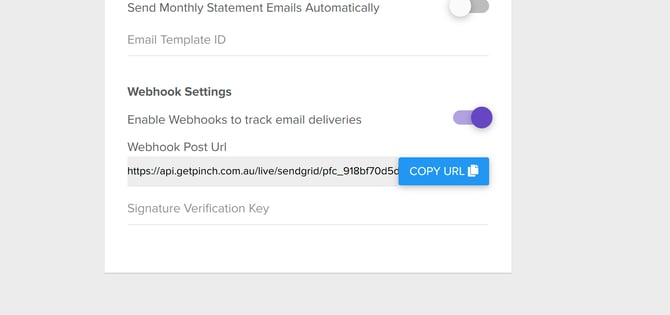
In create new webhook screen fill out the webhook using the URL in the pinch portal and fill it
out with the following permissions and settings and press save.
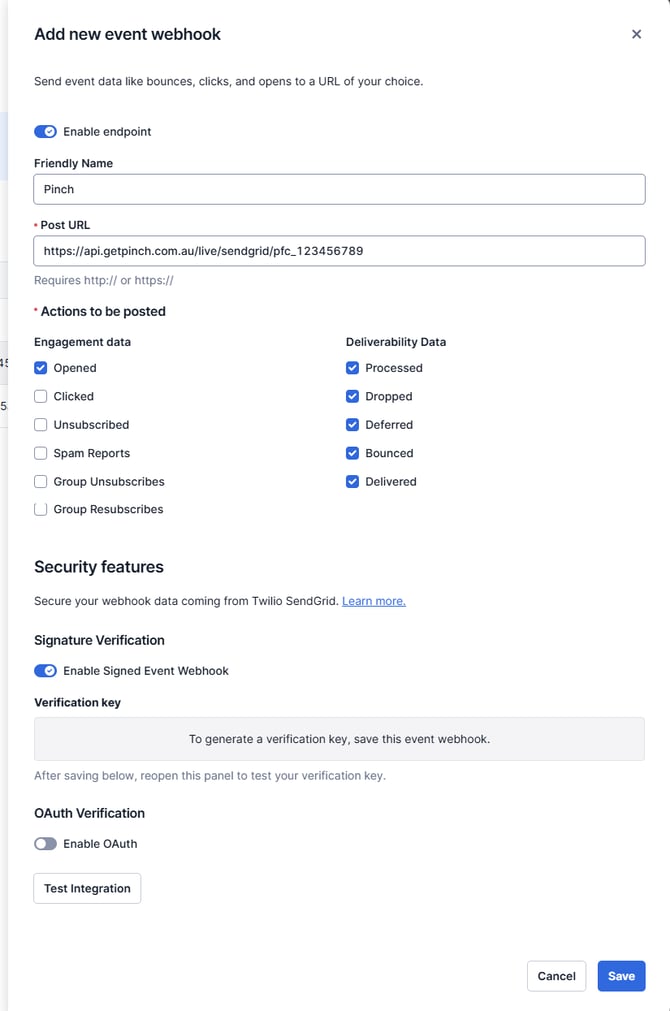
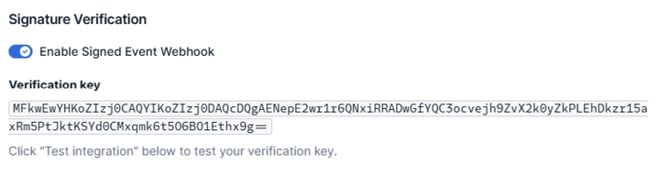
After saving in Sendgrid, click on the settings for the webook by clicking the cog on the right and
choosing edit. There will now be a Verification key populated.
Copy that value (making sure not to include any spaces around it) and paste that value into the
"Signature Verification Key" box in the pinch portal
API Key for Pinch
The API key needs to be sent to Pinch and cannot be loaded into the portal.
To create the API key go to Settings -> Api Keys and click on “Create API Key”. This key can be created as a restricted Key. The only permissions required from Pinch are
-
Mail Send
-
Template Engine
Once created please send the key to your account manager to have it setup in Pinch