![Full logo.png]](https://helpdesk.getpinch.com.au/hs-fs/hubfs/Full%20logo.png?height=40&name=Full%20logo.png)
The Sync Action centre is a tool designed to give merchants the freedom and power to self-resolve simple system failures that can occur from time to time in the Pinch system. Most commonly, these issues stem from outages with our connected accounting system platforms (Xero, QuickBooks or MYOB), where the Pinch system was unable to automatically resync the payments or settlement data successfully. If you are a visual/audio learner, please watch our Tutorial Video on how to use this feature here.
This tool will:
This tool will:
- Give you a single source of truth for current payment and settlement issues in your Pinch account
- Provide a tool to action a re-sync of failed payments or settlements
- Display an error message and an indication of what has caused the failure for you to investigate and rectify without contacting Pinch Support
How do I find the Action Centre?
You can find the Action centre throughout Pinch on the Dashboard, as well as at the top right or Customer, Payment and Settlement pages. The sync Action Centre icon is red, and shows the current dynamic number of issues listed in the tables requiring your attention. Pro-tip, check your Pinch account reguarly to reduce this number to 0 (or as close as you can) to have a perfectly synced Pinch account.
Dashboard Overview
-1.png?width=670&height=178&name=image%20(30)-1.png)
Customer/Settlement/Payments Page Example
-1.png?width=670&height=134&name=image%20(33)-1.png)
Action Centre: How do I use it?
The action centre has two views, Failed Invoices, and Failed Settlements. These two pages allow you to action any required syncs that are currently pending,and see details on what may have/be causing the issue to help you diagnose the problem and resolve.
.png?width=670&height=252&name=image%20(29).png)
Using the tool is simple:
- Navigate to the Action Centre
- Check the Sync Error Message to determine if you can safely resync now, or an action is likely required to assist in a resolution. (Check the companion Knowledge Article for further directions)
- Once you have resolved the underlying issue, or it'snot required you can click the "Sync Now" button.
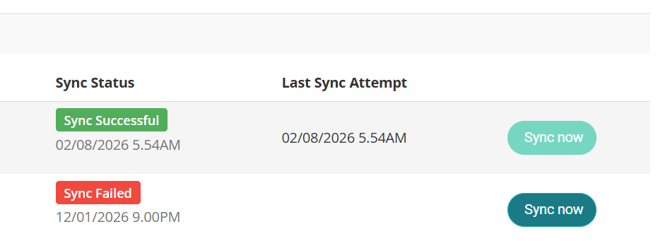
- If the resync has worked the Sync Status will return as Green "Sync Successful", and after a page reload it will be removed from the list.
- If the sync has failed, check the companion knowledge base article, and troubleshoot before attempting a resync again.
Detailed Error Handling:
How to handle errors, and what might be causing the issue you are experiencing, with things to check before resyncing
Invoices / Payments
| Error Group: | Possible Resolutions | Escalation (If resolution does not resolve the issue) |
| Failed to Contact Accounting System | We were unable to establish a connection with your account system. This can occur for a number of different reasons. Rate Limit (Maxamount of data we can send to the Accounting system in a day/hour/minute) Admin User was removed from your Accounting file Outage - Pinch or Accounting System Check that your connection status with your accounting system is Active from the Integrations tab in Pinch. If inactive, try to restore the connection by hitting the reconnect button and reauthenticate. Once a connection is established, wait 5 minutes, and then try resyncing again. |
Contact Support - Please don't disconnect and reconnect while you wait for a resolution, as this can cause additional issues. If the specific error message you receive lists any form of "Rate Limit" error, it's likely that you have reached the data sync limit that we have with your accounting system, and no further data can be synced for a period of time (between 1 hour and 24 hours). Before contacting support, please wait an hour or until the next day and try again depending on the error message. If you continue to experience issues after 24-hours please submit a Support Form with as much contextual information including the invoice number, customer, or details about the issue you are experiencing. |
| Invoice Already Marked as Paid | The invoice already has a payment against it that has marked the invoice as "Paid". Check for external payments from other payment gateways, or accidental reconciliation and once resolved, try resyncing again. Resolution may require you to remove the other payment(s) for Pinch to be able to apply out payment. Alternatively, if overpayment has occured, you can refund via the Pinch system if needed. |
Contact Support Please submit a Support Form with as much contextual information including the invoice number, customer, or details about the issue you are experiencing. |
| Missing Chart of Account | The chart of account this invoice is associated with AR or AP is missing, has been blocked for receiving payment data, or we have been unable to contact Xero to determine if the account exists. Check that the COA this invoice is associated to still exsits, or hasn't been modified/archived (The Code and Name of the COA cannot change) Once resolved, reattmpt the sync again. |
Contact Support Please submit a Support Form with as much contextual information including the invoice number, customer, or details about the issue you are experiencing. |
| Other | The "Other" category covers a number of niche, or edgecase errors. In most cases, this will require an escalation toour support team if your resync attempt fails. Try resyncing, but this may result in a further failure. |
Contact Support Please submit a Support Form with as much contextual information including the invoice number, customer, or details about the issue you are experiencing. |
Settlements / Transfers
| Error Group: | Possible Resolutions | Escalation (If resolution does not resolve the issue) |
| Failed to Contact Accounting System | We were unable to establish a connection with your account system. This can occur for a number of different reasons. Rate Limit (Maxamount of data we can send to the Accounting system in a day/hour/minute) Admin User was removed from your Accounting file Outage - Pinch or Accounting System Check that your connection status with your accounting system is Active from the Integrations tab in Pinch. If inactive, try to restore the connection by hitting the reconnect button and reauthenticate. Once a connection is established, wait 5 minutes, and then try resyncing again. |
If the specific error message you receive lists any form of "Rate Limit" error, it's likely that you have reached the data sync limit that we have with your accounting system, and no further data can be synced for a period of time (between 1 hour and 24 hours). Before contacting support, please wait an hour or until the next day and try again depending on the error message. If you continue to experience issues after 24-hours please submit a Support Form with as much contextual information including the invoice number, customer, or details about the issue you are experiencing. |
| Reconciliation Configuration Issue | The issue likely relates to the bank account we deposit your funds into not matching the same account that we are sending the reconiliation data to. This can be configured on Page 2 of the Accounting Config page in Pinch. Please ensure the correct bank account is selected, save, and then reattempt the sync. |
Contact Support Please submit a Support Form with as much contextual information including the settlement reference, or details about the issue you are experiencing. |
| Missing Chart of Account | The chart of account this invoice is associated with AR or AP is missing, has been blocked for receiving payment data, or we have been unable to contact Xero to determine if the account exists. Check that the COA this invoice is associated to still exsits, or hasn't been modified/archived (The Code and Name of the COA cannot change) In addition, if this is related to settlement, or fee records in the Pinch Payment Expense, or Clearance account these cannot be recoded, or renamed. If you have altered these, please revert your change and then try again. |
Contact Support Please submit a Support Form with as much contextual information including the settlement reference, or details about the issue you are experiencing. |
| Other | The "Other" category covers a number of niche, or edgecase errors. In most cases, this will require an escalation to our support team if your resync attempt fails. Try resyncing, but this may result in a further failure. |
Contact Support Please submit a Support Form with as much contextual information including the settlement reference, or details about the issue you are experiencing. |