![Full logo.png]](https://helpdesk.getpinch.com.au/hs-fs/hubfs/Full%20logo.png?height=40&name=Full%20logo.png)
This method is exceptionally beneficial for Merchants who need to ensure invoices arepaid on, or before their due dates as per contracts or agreements with cleints. Taking a payment by manually processing an invoice using a client's existing Pre-approval is a process we call a "Merchant Initiated Auto-debit"
If an active limited, or Unlimited Pre-Approval exists for a customer , a small checkbox in a number of places across the system will be present, that allows you to debit the customer using their stored payment method. This can be done in three ways.
-
For invoices that already existed, and have due dates prior to when the pre-approval was activated by the client. (Example:Invoice due May 12th, but Pre-approval actived May 14th)
-
For invoices that you wish to process ahead of their normal due date, that would normally be auto-debited (Example: Due May 12th, but customer calls wanting this to be debited ASAP, so you process it on May 10th)
-
Failed Payments, that have been attempted on Auto-debit, but have failed and you wish to attempt them again either ahead of, or outside of any reattempt policy you have configured in Pinch
So, how do you actually process a Merchant Initiated Payment?
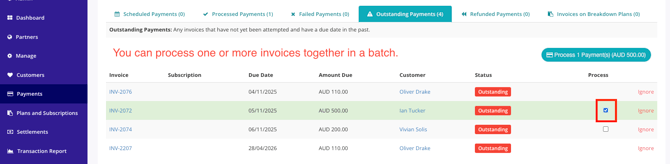
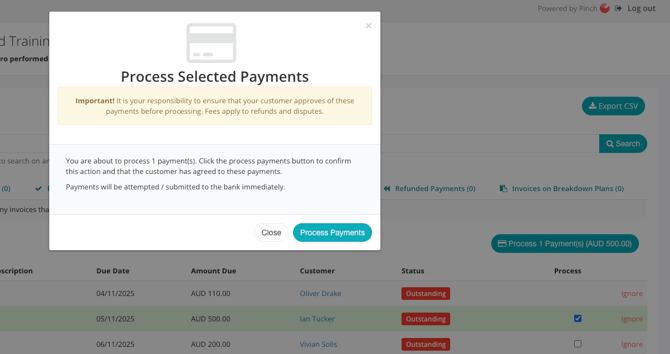
From the "Outstanding" payments tab, by selecting the invoice(s) you see a checkbox next to on the right side of the screen. You can select this checkbox and a "Process X Payments" button will display the total, and bring up a dialog box confirming if you wish to proceed. This will process a payment attempt against the pre-approval.
Or - Customer page directly
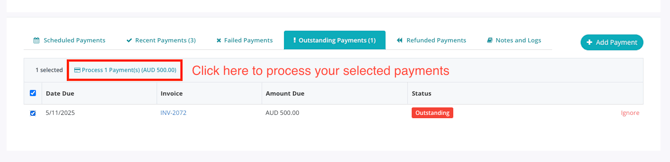
From the Customer Details page of your chosen client (Great if the client has several outstanding invoices and you wish to process a batch) Same selection process as above, however it's on the lefthand side in the Customer Details page.
Important to Note:
Common sense applies, so ensure your clients are ready for, or have communicated that you can action this debit to avoid friction,and possible chargebacks. Many businesses like this approach to debits, as it gives the merchant control over when the debit occurs, so keep this in mind to ensure you are keeping your AR up to date, and not falling behind accidentally, leaving payments on the table.