![Full logo.png]](https://helpdesk.getpinch.com.au/hs-fs/hubfs/Full%20logo.png?height=40&name=Full%20logo.png)
Annature Payments
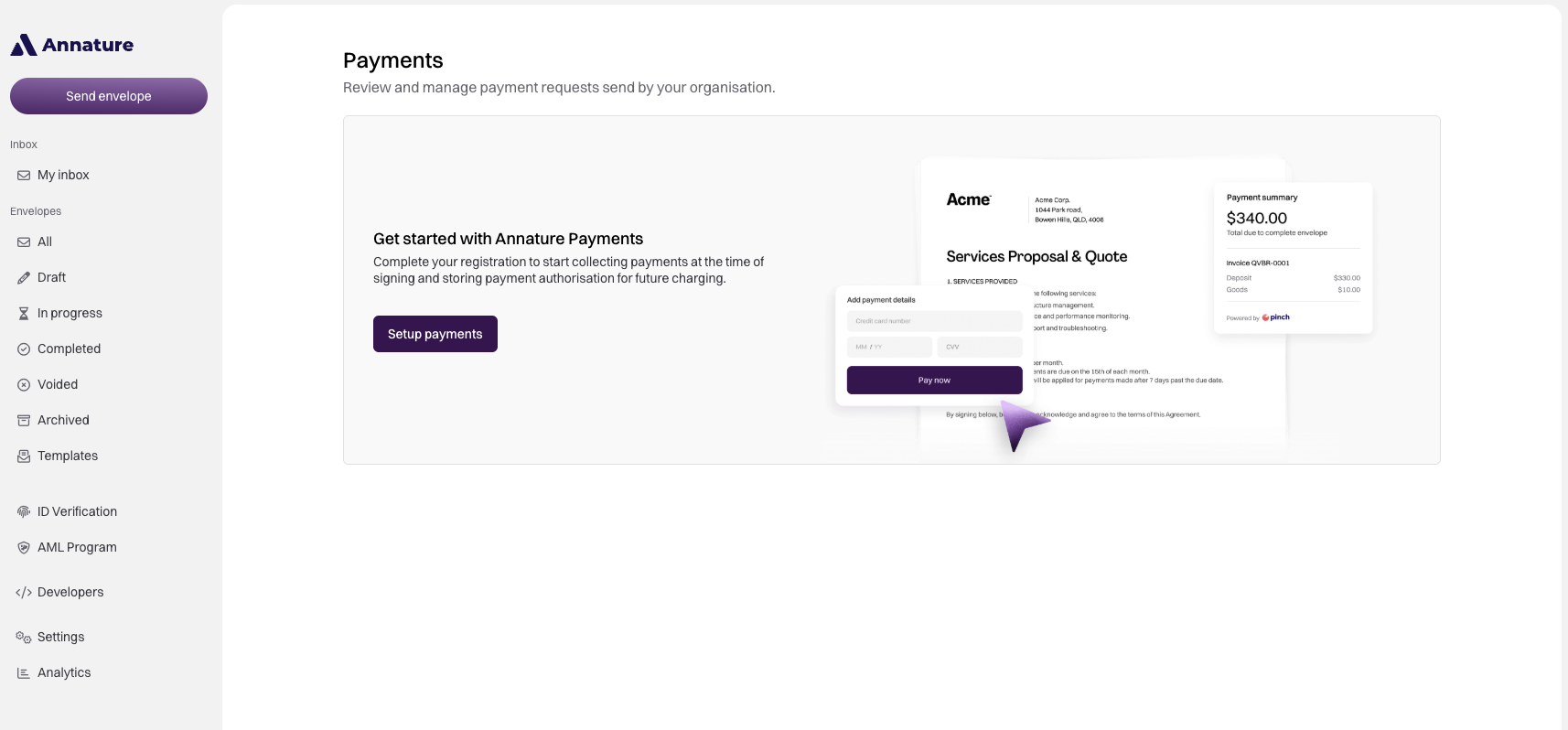
Annature Payments is the embedded payments solution within Annature, powered by Pinch Payments.
If you want to use Sign & Pay, which allows customers to sign documents and complete payment in the same workflow, you'll need to apply for Annature Payments from within Annature.
Your merchant account is onboarded by Pinch Payments behind the scenes, including all required compliance and verification. Once approved, you can also be provided with access to the Pinch merchant portal, giving you the same merchant experience as businesses who sign up directly with Pinch Payments.
Pinch Payments Integration
The Pinch Payments integration is designed for existing Pinch merchants who only want to use Annature to collect Pre-Approvals.
By connecting your existing Pinch account using your API keys, Annature can securely capture customer payment authorities and store them in your Pinch account. This integration only supports Pre-Approvals. It does not support Sign & Pay.
If you want to use Sign & Pay, you'll need to apply for Annature Payments from within Annature.
Setting up Annature Payments
To start accepting payments through Annature Payments:
- Sign up for or log in to your Annature account.
- Within Annature, select Apply for Annature Payments.
- Complete the application form.
- Pinch Payments will begin your merchant onboarding and compliance process behind the scenes.
- If any additional information is required, you'll receive email requests from the Pinch Payments team.
- Once your application has been approved, payments will be activated within your Annature account.
Good to know: Although Annature Payments is powered by Pinch Payments, your setup begins entirely within Annature. There is no need to create a separate Pinch account or manually connect the two platforms.
Connecting an Existing Pinch Payments Account
If you already have a Pinch Payments account and want to connect it to Annature purely for the facilitation of pre-approvals, you can do so using your Pinch API keys.
Before you begin, you'll need:
- An Annature account
- An active Pinch Payments account
Connect Pinch Payments to Annature
- Log in to your Annature account.
- Navigate to Settings → Integrations.
- Select Pinch Payments.
- Click Connect.
- Enter your Pinch API keys.
Finding your API keys
- Log in to your Pinch Payments account.
- Navigate to Integrations.
- Copy your API keys.
- Paste the keys into the corresponding fields in Annature.
- Save your changes.
Your Annature account is now connected to your Pinch Payments account.
Creating a Payment Capture Template
Once your accounts are connected, you can create a document template that captures both customer signatures and payment details in Annature.
- Upload your document to Annature.
- Add any required signature, date and text fields.
- Drag the Payment Method field onto the document.
The Payment Method field allows your customer to securely save their payment details during the signing process.
Sending Documents for Signature
Once your template is ready:
- Open your template.
- Select Quick Send or Use Template.
- Enter your customer's email address.
- Send the document.
Your customer will receive an email inviting them to review and sign the document.
Customer Experience
When completing the document, your customer will:
- Review the document.
- Apply their electronic signature.
- Enter their payment details using the Payment Method field.
- Submit the completed document.
Once submitted, the customer's payment details are securely stored in Pinch Payments.
Managing Payments
Saved payment methods are linked to the customer within Pinch Payments and can be used according to your existing Pinch payment workflow.
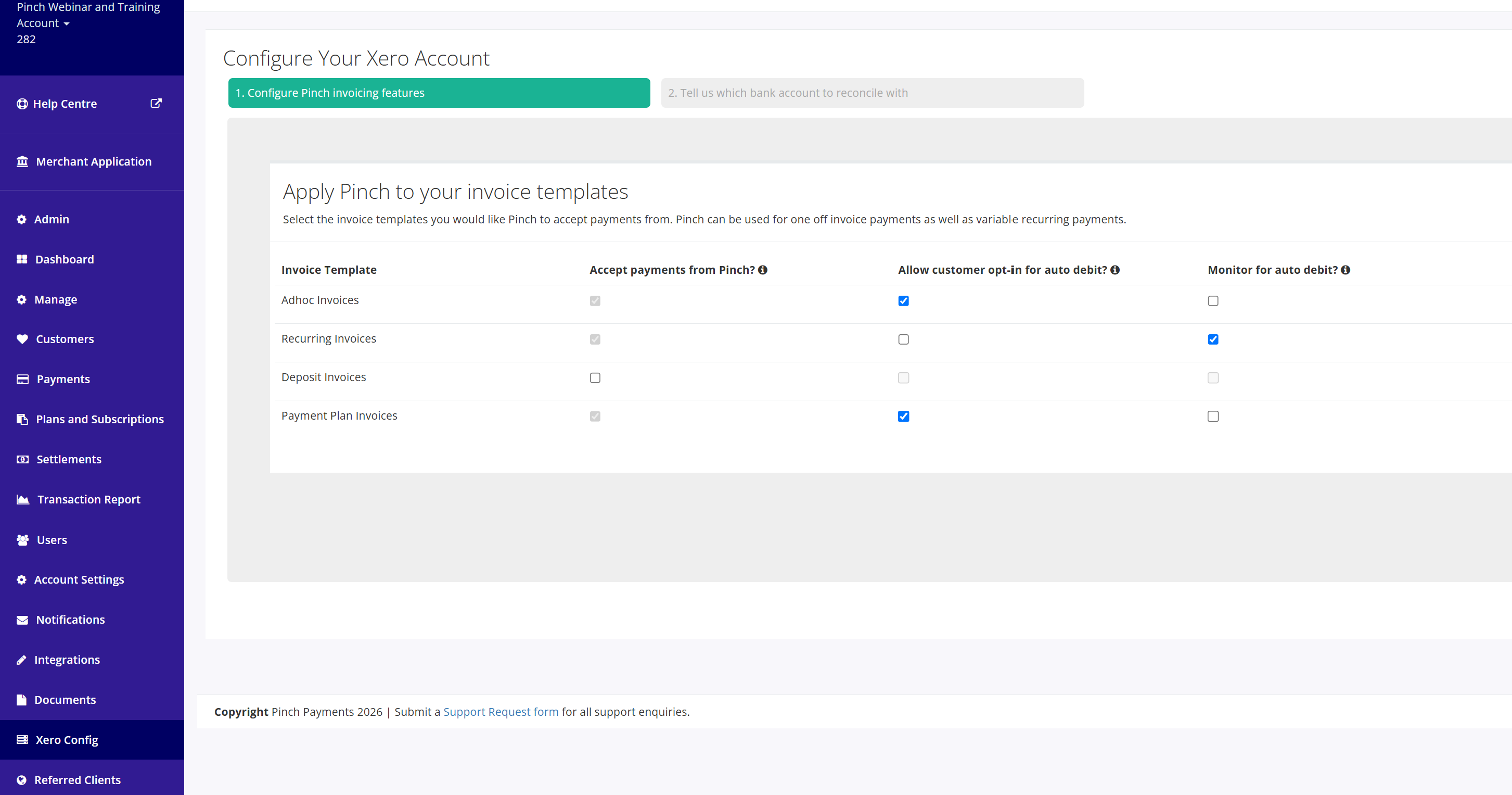
If you're using a connected accounting platform such as Xero, payment methods can also be linked to customer records to support automated payment collection.
By default, Pinch can automatically process payments when invoices become due.
If you prefer to manually process payments, you can configure your payment automation settings within your Pinch Payments account.
Need Help?
If you have questions about setting up Annature Payments or connecting an existing Pinch Payments account, our teams are here to help.